
Firefox
• The browser

The Escalador Audio is made to be used only on Firefox. Other browsers will not work.
We recommend to use the last version of Firefox.
• The localStorage
LocalStorage is necessary to used correctly the Escalador Audio.
We recommend to make a test of localStorage here before buying the Escalador software.
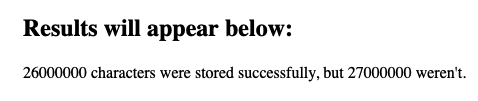
If you see that: … characters were stored successfully… (see below), it means that localStorage is working fine on your Firefox browser, and you can use Escalador Audio.
You can use about:config on Firefox to see (and change if you like) the default quota for localStorage
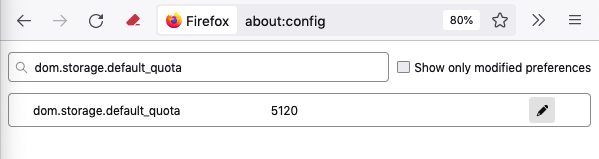

The maximum possible number is 2147483647. We recommend to put this value is you plan to use several Escalador Audio windows.
• Plugin:
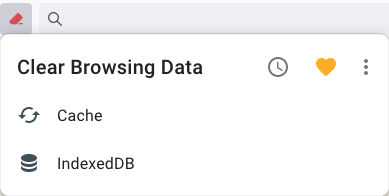
We recommend the use of Clear Browsing Data

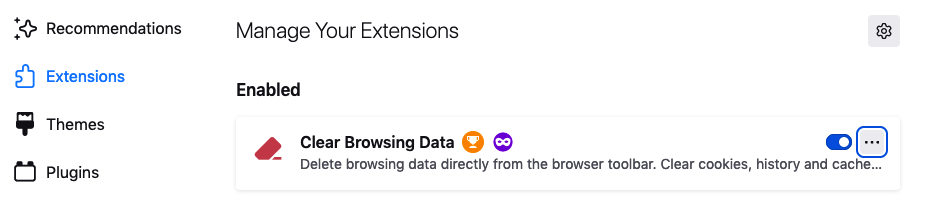
We recommend to choose this preferences:
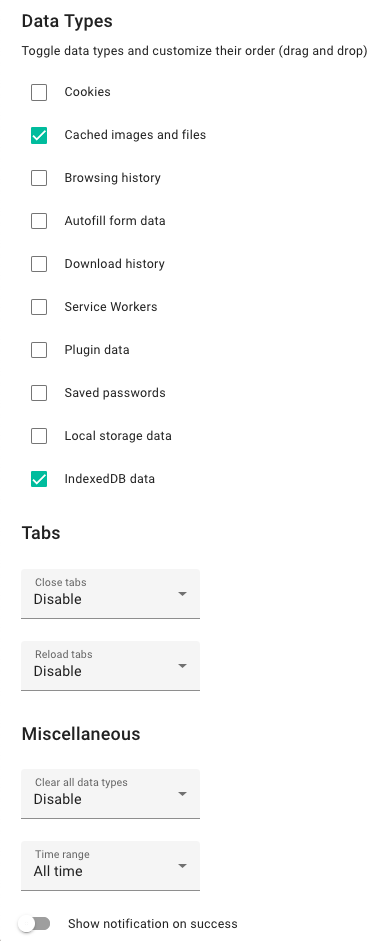
At the Firefox tab-bar you can then choose the function you need
It is a good practice to clear the cache periodically
• Disable “Prevent this page from creating additional dialogs”
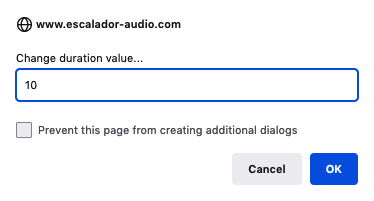
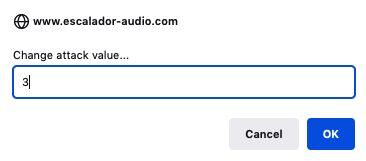
It is very important NOT to click on the “Prevent this page from creating additional dialogs” square button because Escalador Audio needs this window to work properly.
But you can disable this message to be showed, for example, to prevent accidental clicking this square button.
To do so:
• 1 Enter about:config into the url field of Firefox
• 2 Search for dom.succesive_dialog_time_limit
• 3 Click the Number radio button
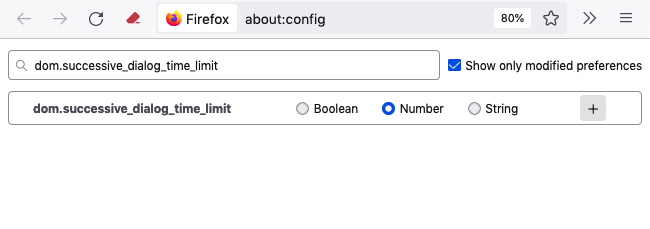

• 4 Put -1 (or 0) on the field and click the blue button

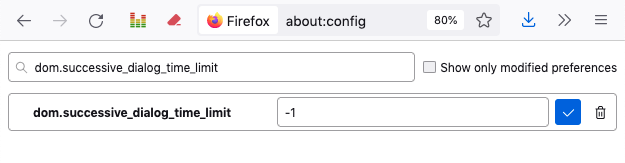
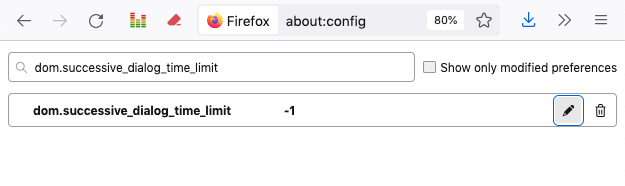
Now we can see the window but without the radio button.
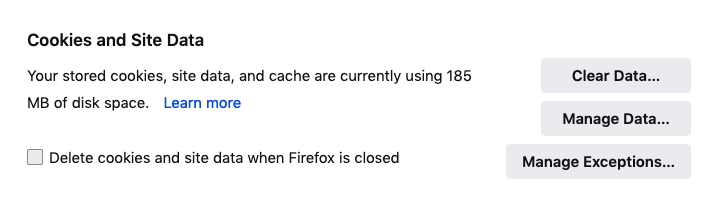
• For Cookies and Site Data:
If you want to preserve the Escalador Audio’s Windows Guides positions, you have to leave unclicked the Delete cookies and site data when Firefox is closed square button
• Concerning the Block pop-up windows
Escalador Audio uses pop-up Windows
Solution 1: Do not click the square button for pop-up windows
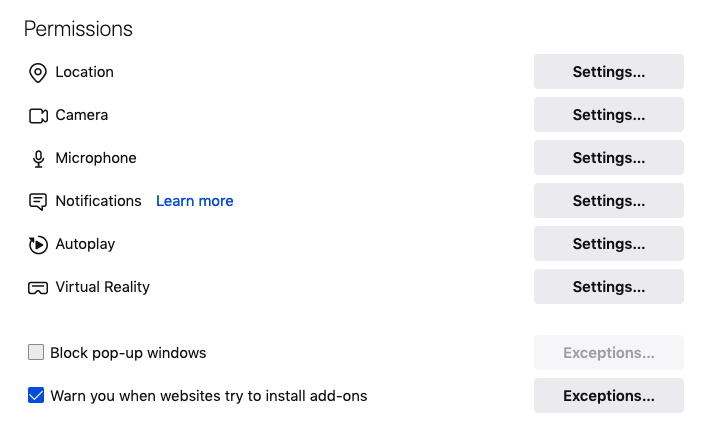
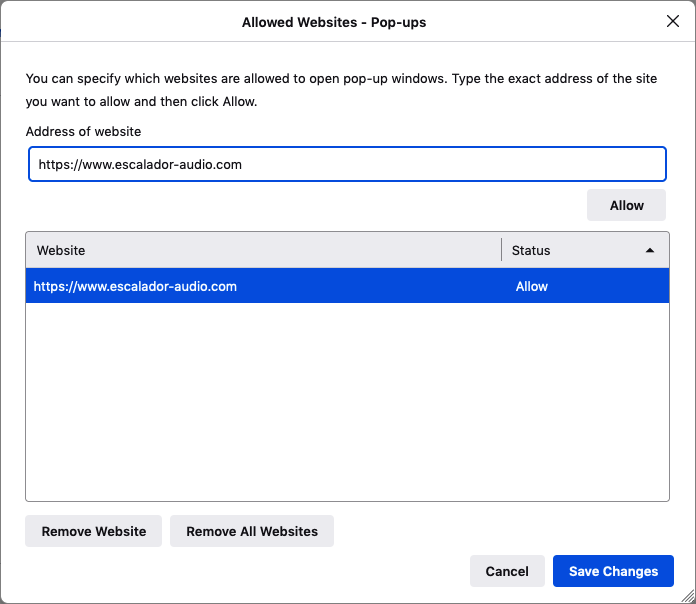
• Solution 2: (If you do not want to use pop-up windows with Firefox) click the Block pop-up windows square button

Then, click the Exceptions button (on the right) and allow the Escalador Audio URL
• About saving scales, buttons, instruments, reverberations, etc. data with Firefox
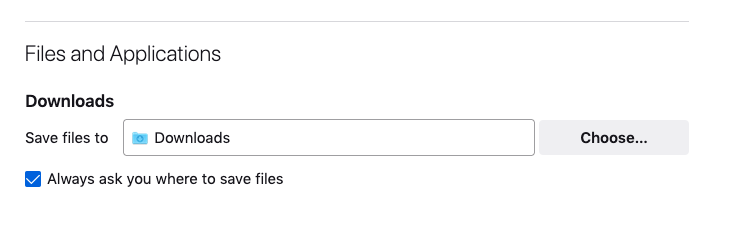
In order to have the option for saving data parameters of data files created by Escalador Audio, you have to click “Always ask you where to save files” button 
• About some erratic behavior of Firefox
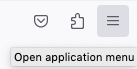
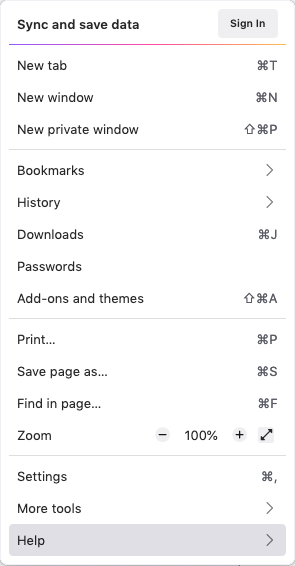
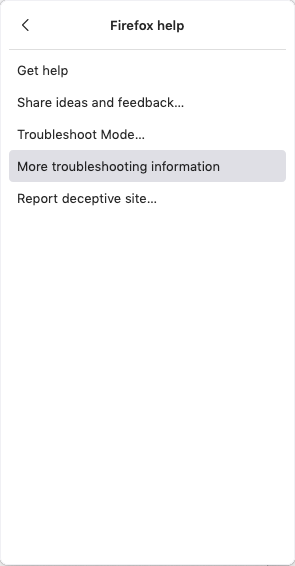
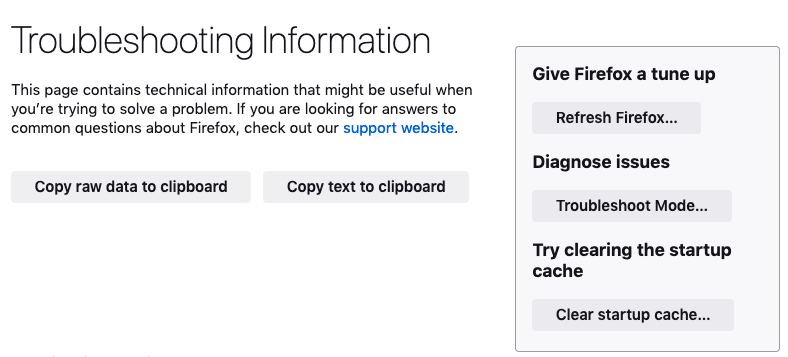
If you denote that Firefox is behaving erratic in some way, for example the audio or video are not functioning properly, you can try, for example to refresh Firefox as showed below. First, open the Application Menu…
 Then click on the Help menu…
Then, click on the More troubleshooting information…
• Increasing Firefox memory cache
• About Firefox’s Memory:
browser.cache.disk
browser.cache.memory
We recommend to enter the value: 2147483647 on the browser preferences:
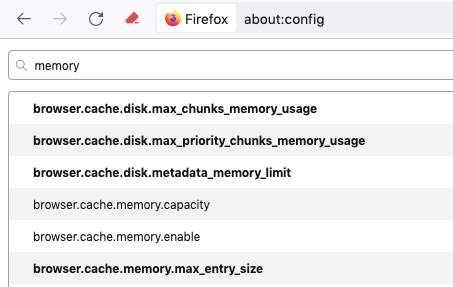
To perform this operation, go to Firefox’s url field:
• Write about:config as indicated below
• Put memory on the search bar as indicated below
• Put the number 2147483647 in each of the four browser preferences indicated below in bold characters
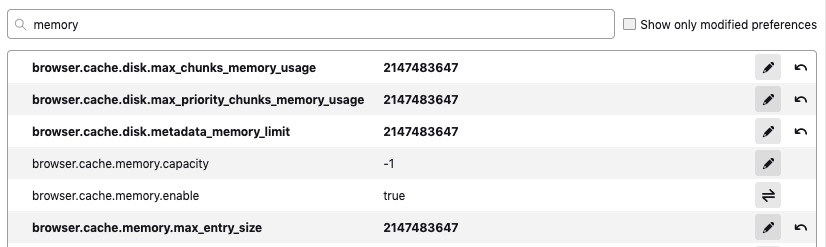
Do not forget to put -1 into browser.cache.memory.capacity
and
true into browser.cache.memory.enable
• Close the Firefox window
