Author: Sytars.com-administrator

Escalador

Escalador’s history

January 12, 2022
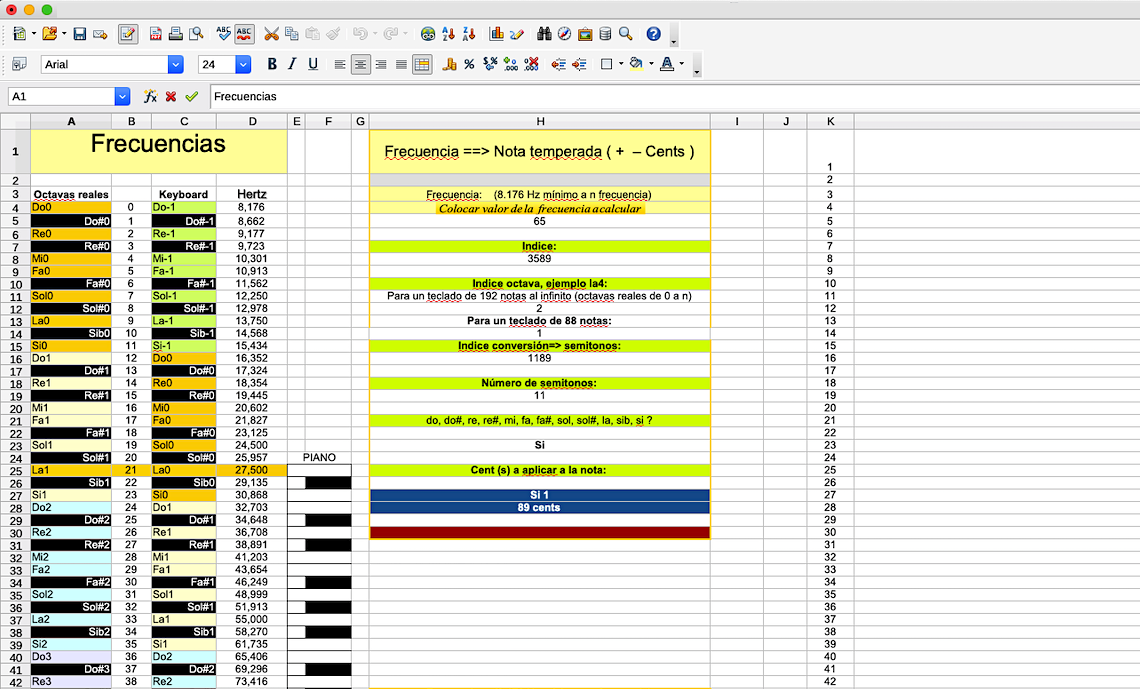
Figure 1: First version of Which note is it? (may 2017)


On may 2017, by thinking about how to construct sonic spaces related by elements other than tones or semitones, I began to implement some research ideas using conventional applications as a spreadsheet program. Little by little I was able to integrate some basic functions as for example, relating frequencies with their respective musical note names and calibrating the cents constants factors.

Then I realised that the spreadsheet program was too limited for the purpose of reaching more complex tasks. So I decided to develop a more appropriate platform to continue the research. At that point, I turned my research into an object-based computer language, offering the possibility to use many different types of objects as buttons, windows, fields, graphics, etc. In doing so, I created the application Which note is it?


Which note is it?

Figure 2: <i>Which note is it?</i> as a part of the <i>Escalador</i> platform


        Figure 2: Which note is it? as a part of the Escalador platform

Since the application was ready to do some basic calculations, my idea was to extend the research into the possibility of making scales. That was the beginning of the Escalador platform. For more information about how does Which note is it? work, please click here.

The Escalador

Figure 3: The <i>Escalador</i>
Figure 3: The Escalador

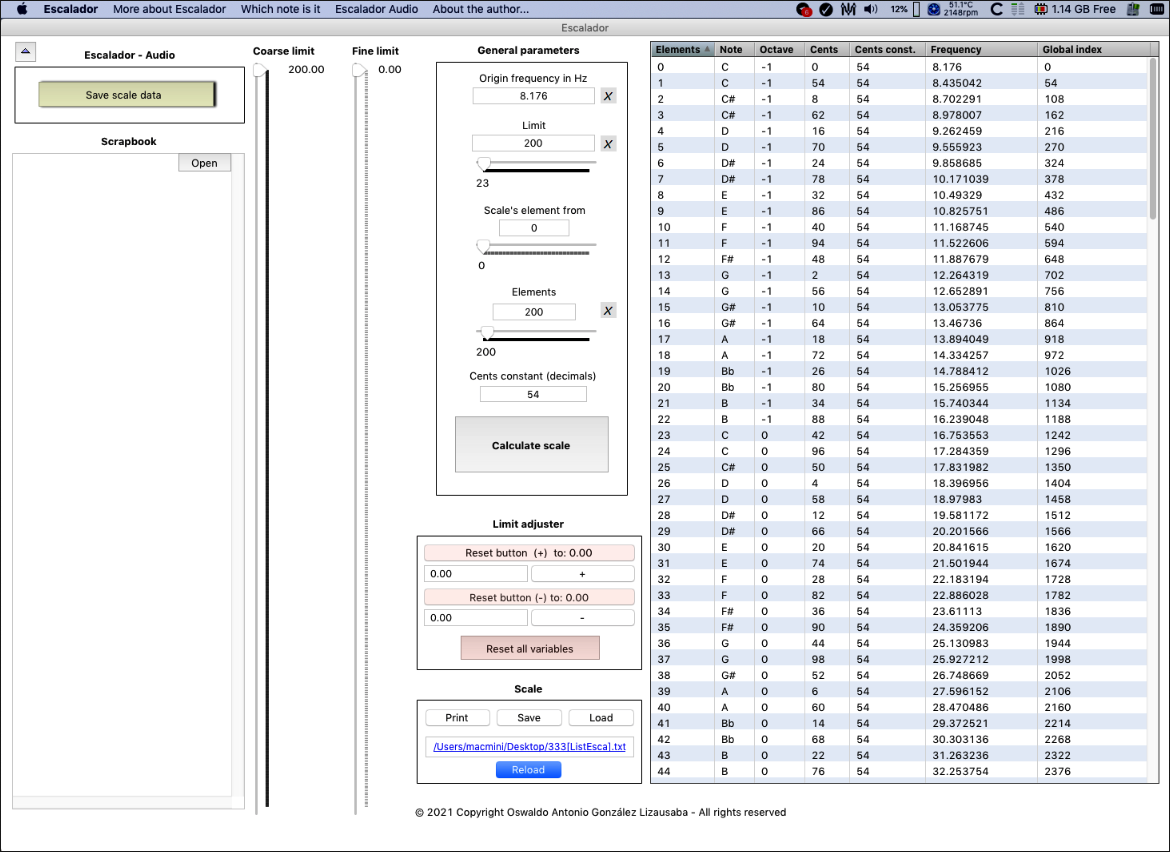
Escalador is a Spanish word. The sense I give to it is on the meaning of a music scale maker. So with Escalador we can make musical scales but also some other important calculations. For more information about how does Escalador work, please click here.

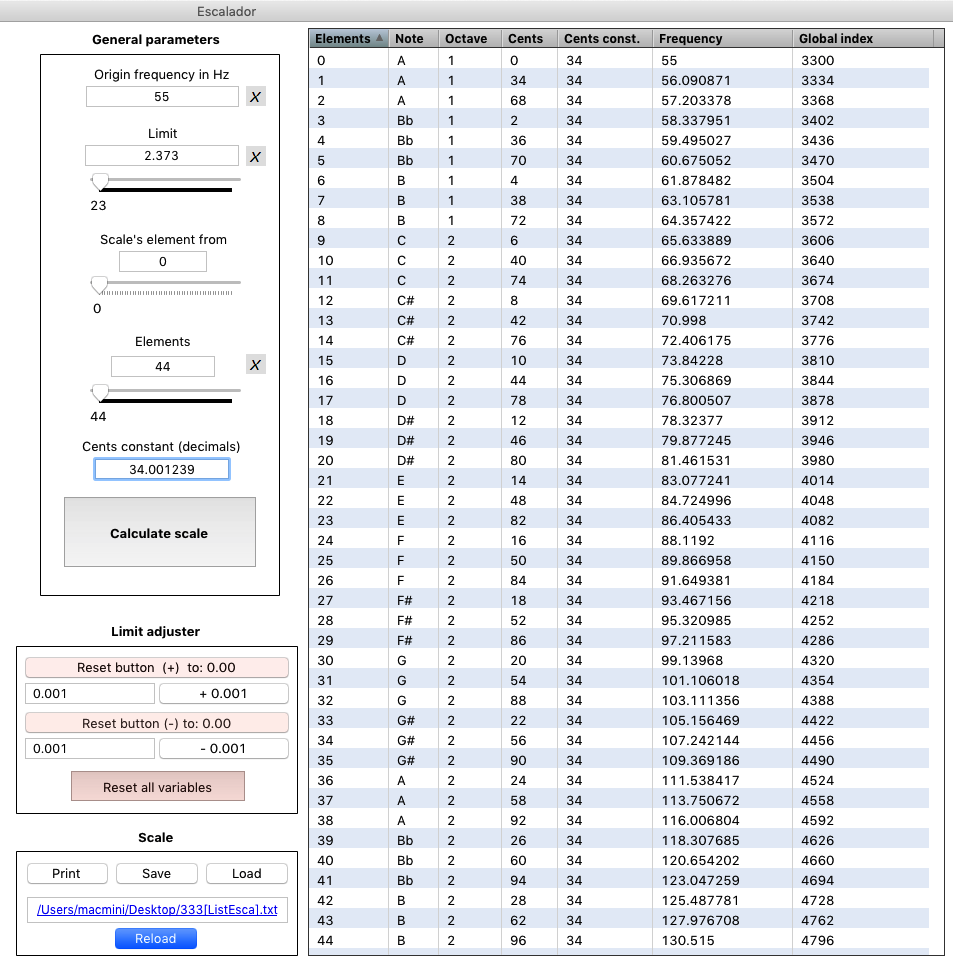
One of the most exiting things that can be done with Escalador is to make tempered and not tempered scales. For example a scale of 44 elements (notes or frequencies) divided say, for example, by 34 cents.

Figure 4: A scale of 44 elements or notes from A0 to B2 with 96 cents

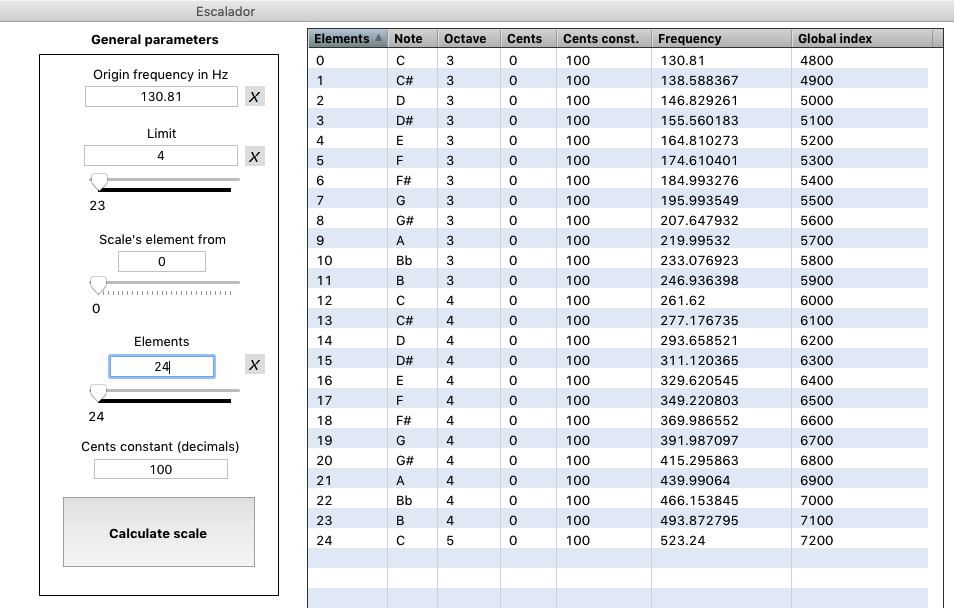
Or a tempered scale of 24 notes from C3 to C5

Figure 5: A tempered scale of 24 elements or notes from C3 to C5

It was very good to see the results of these operations, but one problem emerged, how to hear the sounds?
As an answer of this crucial question, I thought to implement an application by which we could hear the sounds of the scales produced by Escalador.

At the beginning it was interesting to hear the scales, but then I transformed the application on a sort of (electronic) musical instrument. So the result is the Escalador Audio

Escalador Audio

Figure 6: The Escalador audio application

Now with Escalador Audio we can hear the scales, also play chords finally to make music. For more information about Escalador Audio, please click here.

Escalador

Escalador

January 9, 2022


Welcome to the Escalador page (version 2.01)

The Escalador is an application suitable for Mac, Windows and Linux.

• Escalador has three main functions:

1. Production of scales of any type.
2. Recognition of any frequency (from 0.000581 [C-6] @ diapason on 1 Hz) to n showing its respective musical notation value,
named as Which note is it.
3. Escalador Audio, a web application suitable to hear and explore sounds from the scales made by the Escalador application.

• Main features:

General parameters

• Origin frequency in Hz: The origin frequency for the calculations. This frequency is also the first sound of the new scale.
• Limit: This field is related with the musical ‘octave’ or double of frequency notion. For example, number 2 will produce a scale (of n elements) from the chosen frequency (Origin frequency in Hz field) to its double frequency or ‘octave’. When constructing scales reaching to the ‘octave’ value, in this case the Limit field is closed related with the binary logarithm concept and functionality. So, for example, 4 will make a two octave scale (of n elements). And so forth to numbers 8, 16, 32, etc. (powers of 2: a(n) = 2^n).
But when using numbers other than powers of 2, for example, 3, 5, 2.5, etc. then the logarithm associated with that operation, will be a natural logarithm.
• Scale’s element from: With this device, we can choose which element to put at the beginning on the scale’s list, or simply highlight it.
• Elements: The number of sounds of the scale.
• Cents constant (decimals): The cents constant between each sound (note) of the produced scale.
• Calculate scale button: Once the data is entered on the fields: Origin, Limit and Elements, the result can be obtained by clicking that button.

• Limit adjuster can be used to flatten or sharpen the scale’s cents constant.
It will change also the frequencies on the resulted scale.

• Scale: With this device the produced scales can be saved, loaded, printed or reloaded.
• It is important to know that scales produced with, will have this structure: [ListEsca].txt
So only scales with this structure [ListEsca].txt will be recognised.
An example of a scale created can be: Myscale[ListEsca].txt.

• The created scales are shown here.

• Elements means the number of sounds of the scale
• Note: The names of the notes
• Octave: The note’s octave
• Cents: The note offset value in cents
• Cents const.: The cents constant of the scale. For example, 100 means a scale divided by semitones
• Frequency: The frequency of each scale element
• Global index: It is related with the cents attributed to each sound or element from the Origin Frequency.

• Coarse and fine limit: The limit index can also be controlled with these two scrollbars. 

• Save scale data: The scales created, can be saved and ready to be heard on the Escalador Audio application.
The structure given for these scales is [Esca].txt. Only sclaes with this structure are usable for the Escalador Audio application.
An example of a scale created can be: Myscale[Esca].txt.

Finally, the Scrapbook useful for putting ideas, notes. etc.

By clicking the Open button, the scrapbook can be viewed on a wide window and also the text font on it can be adjusted as desired.

The menu

With the About Escalador menu, you can have information about the version of the application. By clicking on the link Escalador version you are informed, via the website, about the current version.

By clicking the Pianissimo cantabile 1 link you can hear the whole work Pianissimo cantabile 1 used when opening the window. Pianissimo cantabile 1 is a work made with the Escalador Audio.


With the Frequency space calculator it is possible to create a frequency space range of your choice.
That space will be visible on the scale list.


With Using the Escalador menu, you can have important information about Which note is it, Escalador and the Escalador Audio.


With the License menu you can read important information on the website concerning all details of the Escalador License. 


Using the Uninstall Escalador menu, you can uninstall one license of the Escalador application from one computer to be used on another one. The process will ask you some information to proceed with the task. At the end of that process you will able to use your (actual) license on a different computer.


With the Which note is it? menu, you can open the homonym application.


By clicking the Escalador Audio menu, you can choose one server to connect to the Escalador Audio application.


Finally the About the author menu, will bring you to the developer’s website.

o


Escalador version 2.2

In the version 2.2, we included several new features:

The diapason, the standard and real cents index.
Two new calculators and a new version of Which not is it? calculator

• With the diapason feature the scales produced will be related with diapason chosen. The range in frequencies for the diapason can be from 20 Hz to n.
When a frequency for the diapason is chosen, the device will compute the note C -5 related with the diapason’s frequency. The calculations are made internally using this C -5 for the calculations. This is why it is also showed.

• The standard index button will recompute the scale from the C -1. The C -1 index is used on most electronic devices, midi instruments, etc.
• The real index button will recompute the scale from the C -5.
All two indexes are produced with the chosen diapason.


The menu

With the Harmonic Calculator it is possible to create scales using the harmonic structure of a fundamental frequency.

• On the field Harmonic structure, by using the number 1, it will produce a harmonic scale with the ‘natural’ structure, that is to say, with integers multiple of the fundamental frequency. By putting other number, for example, (1.20), the harmonic series are not associated with the ‘natural’ integer multiple of the fundamental frequency.

• On the field Number of harmonics, any number can be used to control the number of elements of the new scale.


The main function of the Xva Calculator consist in the agencement of magnitudes or spaces, be they contrated or dilated. These spaces are created from an extrapolation of the octave concept.

• The Xva calculator is a device by which the scales are computed using the logarithm as a main principle for the production of the new scales. The four arithmetic operations of the Logarithmic Base Calculator section of the calculator, can be used also to create new scales.
• Also the original new scales can be bifurcated to new ones, and so on.
The Xva Calculator was inspired by some formulas developed by Williams Montesinos. It is a sort of tribute to the colleague and friend.


The new version of Which note is it?

• The Diapason feature and the Computed and Standard indexes are included.


Escalador version 2.3

In the version 2.3, we included some new features:
The Save inverted scale data button

By using the Save inverted scale data button, a scale can be inverted. That is to say, suppose a scale of ten elements.
The common order made by the Escalador is : 0 1 2 3 4 5 6 7 8 9 10, lower frequency to upper frequency.
By using the Save inverted scale data button, the scale is saved in the inverted order :
10 9 8 7 6 5 4 3 2 1 0, that is to say, upper frequency to lower frequency.


The Scale part of the Escalador’s main window

As in the previous version, with this device the produced scales can be saved, loaded, printed or reloaded. It is important to know that scales produced with, will have this structure: [ListEsca].txt. So only scales with this structure [ListEsca].txt will be recognised. An example of a scale created can be: Myscale[ListEsca].txt. Letter H is added to Save and Load buttons to be used with scales produced by the Harmonic Calculator. So the suffix is: [ListEsca-H]. Remember that scales saved by this device cannot be used as data-scales for the Escalador Audio.


The menu Resize Escalador Main Window


This feature is intended to be useful for computers with not enough screen space to show all the main Escalador window range. So, using the buttons provided the user can adjust the Escalador main window to fit on the screen.


Escalador version 2.4

In the version 2.4, we included some new features:
The possibility to create scales ready to be used with devices using the scala (.scl) format


A button to add decimals to the cents shown on the list


And for the scala format (.scl) too


Cents (Global index column) without decimals

And cents (Global index column) with decimals

Calculating a scale to be used as a Scala scale format


Escalador version 2.5

In the version 2.5, we included some new features:
Two windows related with the main Frequencies Space Calculator window


The Frequencies Space Calculator window

The Frequencies Space Calculator window, has two new buttons, Constants and Spaces, by which the user can make more dynamic frequencies spaces, or scales.


Constants

Clicking the button Constants the window Constants is showed. The left column (Constants window) refers to the “C” index of the Frequencies Space Calculator window. By clicking any number, the Escalador shows instantly the resulted calculation.


Spaces

The Spaces window is a more flexible device. It can create any type of desired space of frequencies. The new space can be imagined in terms of cents (¢). For example, a space of 1700 cents (see above) has a number of 17 sounds (semitones, 100¢) for the scale. The field Sounds can be modified to change the number of sounds of the scale. The field Constant shows the constant of the calculated scale.
With the field New Constant, the user can change the constant divider of the computed scale.

By changing the number of sounds of the scale, by 13 in our example (see below), the constant of the space of frequencies (scale) is now 131 (rounded).

By clicking the button: , the list on the right shows a new space of frequencies of 1700 cents (Global index column), 13 sounds with a constant of 131 ¢.

Also, the constant of a space of frequencies can be changed. Using the Change the constant of the space part of the window. Using the New constant field the user can insert the desired new value. By clicking the button a new space is shown at the list on the right of the Escalador.


In the example below, the space of 1700 ¢ constant’s have been changed from 100 to 50 ¢. It is important to denote that the space of frequencies also changed from 1700 to 850 ¢.


Calculating a scale to be used as a Scala scale format

Example (using the Frequencies Space Calculator): From a space of twelve semitones (1200 ¢), lets imaging 19 elements instead of 12. We put 1200 in the Space field, then, we put 19 in the Sounds field. By clicking the button, we can see that the constant is (rounded) 63 ¢.

Note that the result is given as a standard scale to be used by the Escalador Audio application.

Now, to convert the standard Escalador scale format to a Scala scale format, we have to click the button:

Now at the Global index column of the list, we can see the exact scala format ready to be saved as a standard Scala format to a file

Here, we can see the contents of the saved file as a standard Scala format


Calculating a harmonics scale to be used as a Scala scale format


In this example we use as a fundamental frequency C-1 (8.176 Hz @ 440 ¢ diapason). Then we choose for the Harmonic Structure field: 0.03 and 40 as the Number of harmonics. The column Cents constant (Cents const.) of the list (below), is showing the structure that will be used for the Scala format.

 By clicking the  button, we obtain a new Scala scale from the Harmonics calculator device.

The Scala data can be found at the column Cents const.


Now the user can click at the button, to save the data ready to be used.


Escalador version 2.6

In the version 2.6, the Scale segmentation feature is included:

The Scale segmentation is suitable for the Escalador Audio and Scala formats
The segmentation feature is located at the More Escalador menu.

With the scale segmentation feature, any sort of segmentation of the space of frequencies can be done. For example, we can imaging a list of frequencies segmented by: 10 frequencies with a cents constant of 34, then next 15 frequencies are obtained by choosing frequencies displayed on the resulted list (at the left of Escalador listing), in any order, then, we can add frequencies by hand, inserting them on the fields for that purpose etc. etc.


The scale segmentation feature for the Escalador format

Watch the explanation video (this video will be published soon)

The scale segmentation feature for the Scala format

Watch the explanation video (this video will be published soon)

Escalador version 2.7
In version 2.7, the diapason (A4) can now be from 1 to n.

The frequency for calculations start at C-6 and not from C-5.
The lower frequency for calculations is 0.000581 [C-6] @ diapason on 1 Hz)

First implementation of Escalador’s Diapason (Escalador 2.2)


Escalador version 3

Many new features are implemented in the Escalador calculation device
and some other improvements where also made for the Escalador Audio environment.

Modify scales:

New scales will be generated randomly. Three types of scales can be generated.


Processing scales:

New scales are processed to be used as information or demonstration data


Harmonics Calculator:

New version of the Harmonics Calculator


Escalador, Which note is it?

Which note is it?

Welcome to Which note is it? page.

Here you can read information about the main features of this part of the Escalador application.
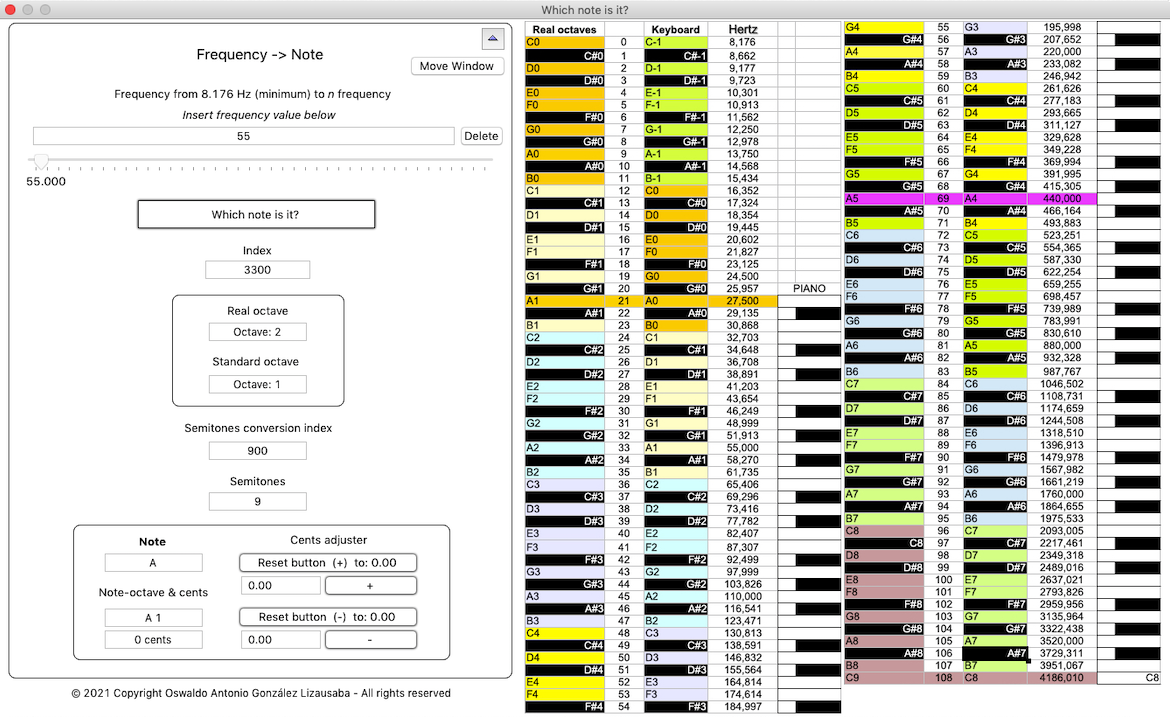
The main function of it is to ask, by means of the interface, the correspondent musical note name of a frequency with its respective cents.

For example: If we ask about the frequency 55 (Hz):

The answer is: Note A1, A octave 1 with 0 cents


Some explanations:
• Index represent the number of cents from the origin frequency of calculation – related with de assigned diapason – to the asked frequency, in our example 55 Hz.

The results of calculations are given here
with the standard convention


• About Semitones conversion index:

900 means: 900 cents from an octave point of view. In our example, 9 semitones from C1 is A1
One important thing to know: Calculations to name a note are made from C.

The frequencies and notes below correspond to the A (440 Hz) temperament.


• About: Cents adjuster

You can adjust the frequency in function to get precised data.


For example you can put 0.1 on the adjuster field

Then you click the correspondent button (+ 0.1) as in this example, then you will see:
A1 with 3 cents. And the frequency is now 55.1 or more precised 55.100.
Each time the button is clicked the program will add (in this case, 0.1) to the overall frequency.

Then the same operation (for subtraction) can be done with the minus ( – ) button.

• Fancy frequencies…
You can also put on the frequency field any positive number : 82342749283492836773211380549083615260521152304256122880
Here we obtained a G sharp octave 181 with 60 cents…

• Checking harmonics of a fundamental frequency:
We can check the harmonic series of a fundamental frequency. To do so, lets take C0 (16.352Hz) as a fundamental frequency.

Then insert this number (16.352) into the cents adjuster

Then by clicking the ‘+ 16.352’ button we can obtain the frequencies of the harmonic series.


And so on…


Escalador, Escalador Audio

Escalador Audio

January 8, 2022

About the Instrument Nº 1